 XIA LEI
 Something remarkable happened when Apple released the M4 Max chip. For the first time, a laptop you can buy off the shelf has enough raw compute — and enough unified memory — to run large language models that would have required a server rack just two years ago. Ollama is the tool that makes it dead simple to take advantage of this.
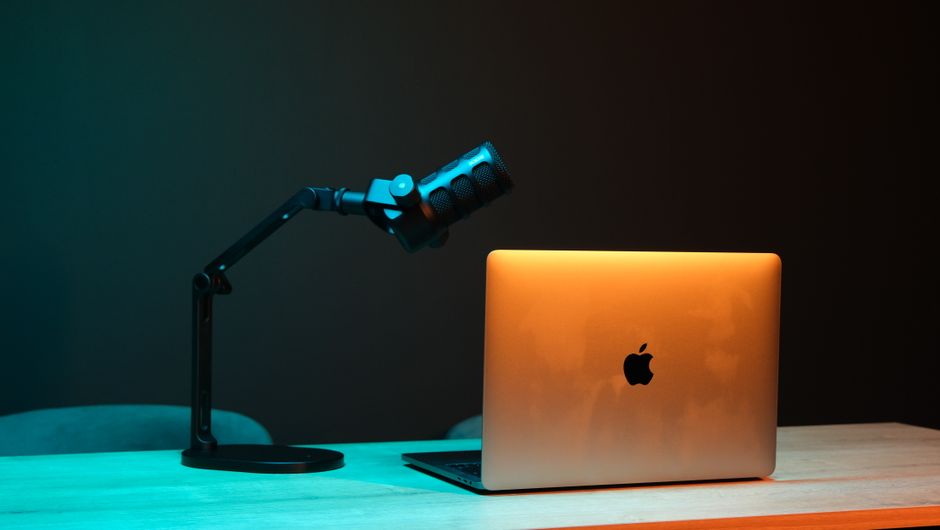
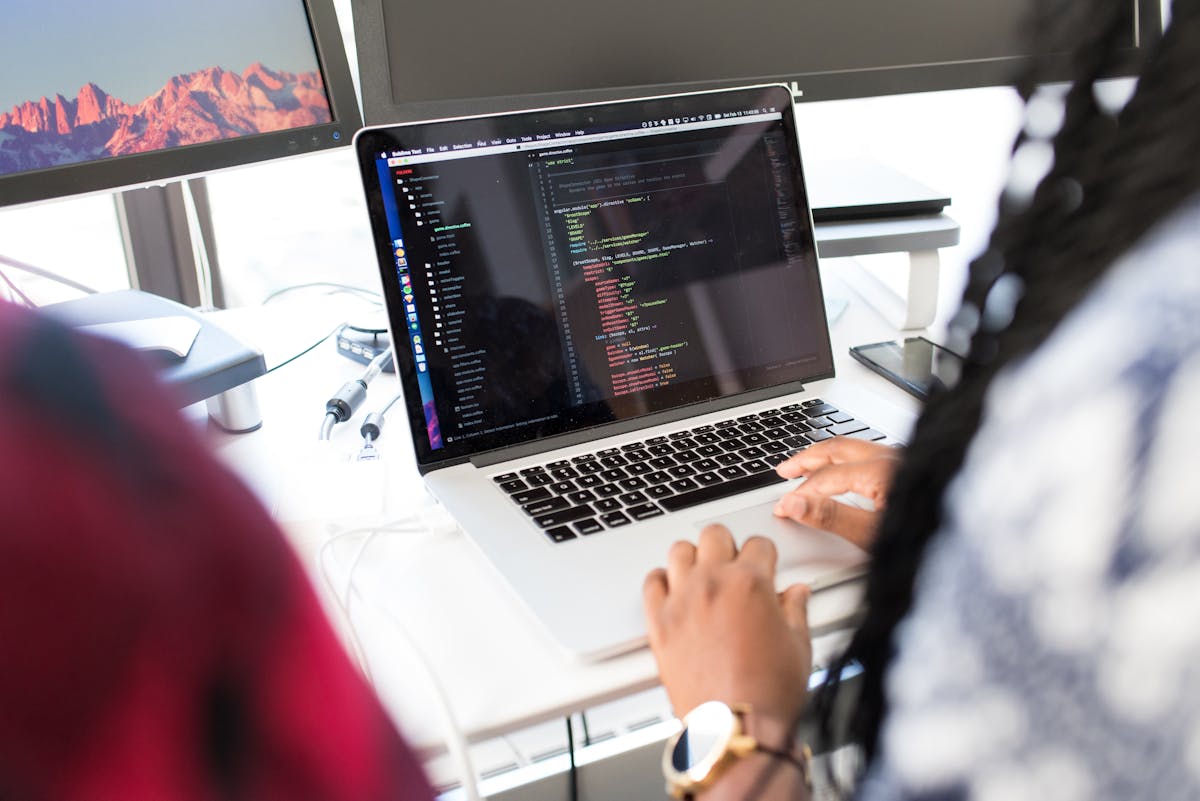
MacBook Pro M4 Max — Test Machine
Memory bandwidth is the metric that matters most for local AI inference, and 546 GB/s is extraordinary for a laptop — comparable to high-end discrete GPUs that cost thousands of dollars extra. This is why the M4 Max can run models that would choke most consumer hardware.
“The M4 Max doesn't just run local AI models. It runs them faster than most people's cloud API calls return — without sending a single byte of your data anywhere.”
— From benchmarks on this machineWhat Is Ollama?
Ollama is an open-source tool that makes running large language models locally as simple as ollama run llama3. It handles everything you would otherwise need to configure manually: model downloading, quantization, GPU/CPU routing, and serving a local API endpoint that mimics OpenAI's interface.
Before tools like Ollama, running a model locally meant wrestling with Python environments, CUDA drivers, model weight formats, and inference frameworks. Today it takes about three minutes from a blank terminal to a running AI assistant. On Apple Silicon specifically, Ollama automatically routes computation through Metal Performance Shaders — Apple's GPU framework — so you get maximum performance without any configuration.
Installation: Three Steps
Download and install Ollama
Visit ollama.ai and download the Mac app. It's a standard .dmg installer — drag to Applications, done. Alternatively, if you prefer the command line:
# Install via Homebrew
brew install ollama

# Or run the official install script
curl -fsSL https://ollama.ai/install.sh | sh
Once installed, Ollama runs as a background service — a small icon appears in your menu bar. It starts automatically on login and exposes a local API at http://localhost:11434.
Pull your first model
Open Terminal and pull a model. Ollama's library includes dozens of models. For Chinese and English tasks, Qwen2.5 from Alibaba is an excellent starting point. For general English work, Llama 3.1 or Gemma 3 are strong choices.
# Best for Chinese + English (recommended)
ollama pull qwen2.5

# Best general English model
ollama pull llama3.1

# Lightweight, very fast
ollama pull gemma3:4b

# Coding specialist
ollama pull deepseek-coder-v2

# See all your downloaded models
ollama list
Qwen2.5 at 7B parameters weighs about 4.7 GB and downloads in a couple of minutes on a decent connection. On the M4 Max's 64 GB unified memory, you could comfortably run the 32B or even 72B variants if you wanted deeper capability.
Start chatting
Run the model directly in Terminal for an immediate chat interface, or use the REST API to build applications on top of it.
# Start an interactive chat session
ollama run qwen2.5

# You'll see:
>>> Send a message (/? for help)

# Type your message and press Enter
# Type /bye to exit
# Call the API directly (same format as OpenAI)
curl http://localhost:11434/api/chat \
  -d '{
    "model": "qwen2.5",
    "messages": [
      {"role": "user", "content": "Explain RAG in one paragraph"}
    ],
    "stream": false
  }'
Choosing the Right Model
The M4 Max's 64 GB unified memory is the deciding factor. A rough rule of thumb: a quantized model needs about 0.7 GB per billion parameters. This means you can comfortably run models far larger than anything typical consumer hardware can manage.
| Model | Size | Disk | Best For | Speed |
|---|---|---|---|---|
| gemma3:4b | 4B | ~2.5 GB | Quick tasks, low latency | Very Fast |
| qwen2.5 | 7B | ~4.7 GB | Chinese + English, general use | Fast |
| llama3.1 | 8B | ~4.9 GB | English reasoning, coding | Fast |
| deepseek-coder-v2 | 16B | ~9 GB | Code generation, debugging | Medium |
| qwen2.5:32b | 32B | ~20 GB | Complex reasoning, long docs | Medium |
| llama3.1:70b | 70B | ~43 GB | Near-GPT-4 quality, research | Slower |
qwen2.5 for day-to-day use. Once you're comfortable, try qwen2.5:32b — the quality jump is substantial, and 64 GB unified memory handles it without breaking a sweat.Using Ollama with Python
The real power of Ollama emerges when you build applications on top of it. Because its API mirrors OpenAI's interface exactly, any code written for OpenAI works with Ollama by changing one line — the base URL.
import requests, json

def ask_ollama(prompt, model="qwen2.5"):
    response = requests.post(
        "http://localhost:11434/api/chat",
        json={
            "model": model,
            "messages": [{"role": "user", "content": prompt}],
            "stream": False
        }
    )
    return response.json()["message"]["content"]

answer = ask_ollama("What is the capital of Australia?")
print(answer)
from openai import OpenAI

client = OpenAI(
    base_url="http://localhost:11434/v1",
    api_key="ollama",
)

response = client.chat.completions.create(
    model="qwen2.5",
    messages=[
        {"role": "system",  "content": "You are a helpful assistant."},
        {"role": "user",    "content": "Explain quantum entanglement simply."},
    ]
)

print(response.choices[0].message.content)
Building a Gradio Chatbot on Top
With Ollama running in the background, adding a proper web interface takes about 20 lines of Python using Gradio. This creates a fully functional chat UI accessible from any browser on your local network — or shared publicly with a single flag.
import gradio as gr, requests

MODEL = "qwen2.5"

def chat(message, history):
    messages = []
    for user_msg, bot_msg in history:
        messages += [
            {"role": "user",      "content": user_msg},
            {"role": "assistant", "content": bot_msg},
        ]
    messages.append({"role": "user", "content": message})

    response = requests.post(
        "http://localhost:11434/api/chat",
        json={"model": MODEL, "messages": messages, "stream": False}
    )
    return response.json()["message"]["content"]

gr.ChatInterface(
    fn=chat,
    title=f"Local AI — {MODEL}",
    description="Powered by Ollama on MacBook Pro M4 Max. Fully private.",
    examples=["Summarise the key ideas of RAG", "Write a haiku about silicon"],
).launch(share=True)
# Install Gradio if needed
pip install gradio requests

# Make sure Ollama is running, then:
python app.py
ollama serve in a separate terminal tab. The API won't respond if Ollama isn't running.Why This Matters: Privacy and Speed
The two arguments for local AI are privacy and latency. On privacy, the case is simple: when you run Ollama locally, your prompts and responses never touch an external server. Every query stays on your machine. For anyone working with sensitive client data, proprietary code, or confidential documents, this is not a minor benefit — it's a fundamental requirement.
On latency, the M4 Max delivers a genuine surprise. In practical use, a 7B model running locally on this chip responds faster than most cloud API calls — not because the model is faster, but because there is no network round-trip. The first token appears almost instantaneously. For interactive tasks like coding assistance or document review, this responsiveness transforms the experience.
“No subscription fees. No rate limits. No data leaving your machine. The M4 Max running Ollama is the most private AI setup available to anyone without a data centre.”
There is also a cost argument. Cloud AI APIs charge per token. Heavy users of services like GPT-4 or Claude can accumulate significant monthly bills. Ollama is free. The compute cost is already paid for in the price of the laptop. For developers building and testing AI applications, the ability to run unlimited inferences locally — with no API key, no billing dashboard, no rate limits — dramatically accelerates the development loop.
Useful Commands to Know
# List all downloaded models
ollama list

# Run a model (interactive chat)
ollama run qwen2.5

# Pull a new model
ollama pull llama3.1:70b

# Delete a model (free up disk space)
ollama rm gemma3:4b

# Show model details and parameters
ollama show qwen2.5

# Check which models are currently loaded in memory
ollama ps

# Run Ollama as a server (if not using the app)
ollama serve

# One-shot query without interactive mode
ollama run qwen2.5 "What is the Pythagorean theorem?"
The Bottom Line
The MacBook Pro M4 Max is the best consumer hardware for local AI that has ever existed. Its combination of GPU cores, unified memory architecture, and raw memory bandwidth puts models that were previously the exclusive domain of expensive server hardware into a device that fits in a backpack.
Ollama makes the software side effortless. Installation takes three minutes. Switching between models takes seconds. The OpenAI-compatible API means your existing code works without modification. And everything — every query, every response, every document you process — stays entirely on your machine.
If you have an M4 Max and you haven't tried Ollama yet, open Terminal now. Type ollama pull qwen2.5. You'll have a fully private, locally-running AI assistant in about two minutes. It is, genuinely, one of the most useful things you can do with this machine.